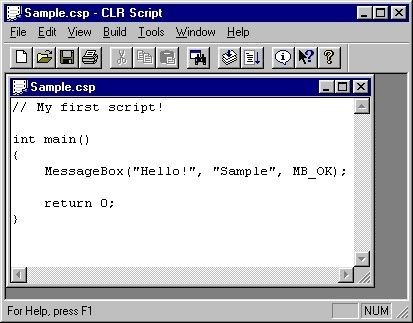
-
Run scripts from a system tray menu,
desktop shortcuts
-
Run scripts without displaying the
progress dialog window, i.e. run hidden.
-
Run scripts without CLR Script
installing itself on the computer.
-
Use the Run command to compile and
run a script.
-
Use the Compile command to test
compile a script.
-
Two compilers are included: a strict
version and a lenient version.
-
Use the Window Information Finder
command to find the text, class name, and ID of a window or
control.
-
Use the Find command to find text
within the script file.
-
Use the Replace command to find and
replace text within the script file.
-
Use the Font command to adjust the
editor window font.
-
Use the Create Desktop Shortcut
command to create a desktop shortcut to run a script file.
-
New lines are automatically indented
to the previous line.
-
Pressing the tab key with multiple
lines selected indents the lines.
-
Pressing the shift+tab keys with
multiple lines selected
-
unindents the lines.
-
When opening a script file from the
command line, if the file does not exist, you will be asked if
you would like to create a new file.
-
When running or compiling, all the
modified open files are automatically saved.
-
Read the Tip of the Day when the
program starts.
-
Automatically check for an update to
the program if you're connected to the Internet.
-
Get help for built-in functions by
pressing F1.
-
Context sensitive help for commands.